
How Custom Data Points Work in Each Platform
Grassroots
-
CDPs available during campaign creation are sourced directly from the contact list(s) attached to that campaign.
-
Only the fields present in the uploaded list(s) will appear as selectable CDPs.
Iris
-
CDPs are stored at the client level.
-
Any custom data point the client has ever uploaded or added will be available on all campaign creations, regardless of the specific list used.
Best Practices for Using Custom Data Points
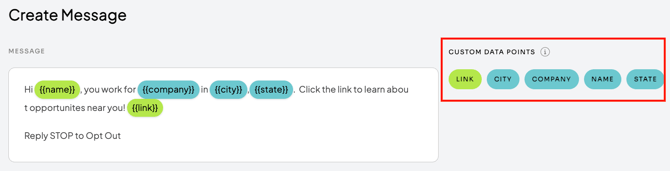
1. Always Insert CDPs Using the CDP Button
-
When crafting your message, select the custom data point using the platform’s CDP button, not by typing it manually.
-
This ensures the system correctly recognizes the CDP and pulls the accurate value from the contact list.
2. Do NOT Free-Type or Copy/Paste CDPs
-
Avoid manually typing
{FirstName},{City}, etc., even if you think you’re typing them correctly. -
Free-typing introduces the risk of:
-
Spelling mistakes or formatting inconsistencies
-
Characters not matching expected syntax
-
The system failing to map the CDP during send
-
-
Messages may appear correct in test messages, but custom data may fail to populate on the full send if the CDP is not properly recognized.
3. Using the Button Guarantees Proper Mapping
-
The CDP button inserts the exact system-validated field name.
-
This eliminates guesswork and ensures the appropriate value from the contact list is injected into the live messages.
Additional Notes
-
Our team is actively adding guardrails to prevent campaigns with incorrect or unrecognized CDPs from launching.
-
This will help eliminate edge cases where a test message succeeds but a live message fails to map the data.
Need Help?
If you have any questions or need assistance, please reach out to the Operations team:
operations@wondercave.co
Slack — Message the Ops team directly
We're here to help ensure your campaigns run smoothly.